Client config
Notes// archive From the original Code Walker docs. Kept for reference, so some versions and commands may be out of date.
The only thing now a little setup.
Hostname#
First bit of system administration might be to set the hostname, for example:
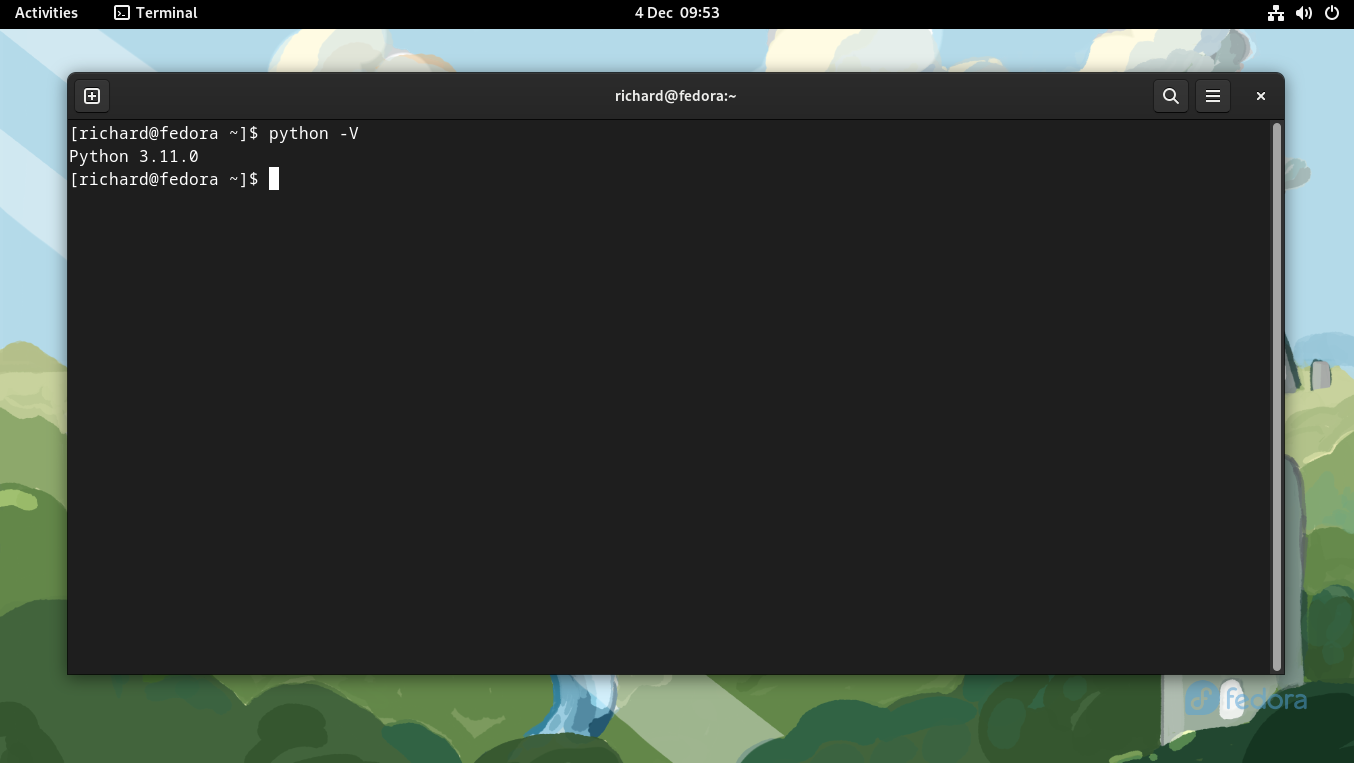
sudo hostnamectl set-hostname fedoraThen, notice with this version of Python the version of Fedora, good to go:
Great!
VSCode#
I user PyCharm and VSCode, but VSCode does seem to be the most popular editor, it’s free after all and has great plugins for just about everything.
See this for installation: https://code.visualstudio.com/docs/setup/linux
Here are the important steps for Fedora:
sudo rpm --import https://packages.microsoft.com/keys/microsoft.ascsudo sh -c 'echo -e "[code]\nname=Visual Studio Code\nbaseurl=https://packages.microsoft.com/yumrepos/vscode\nenabled=1\ngpgcheck=1\ngpgkey=https://packages.microsoft.com/keys/microsoft.asc" > /etc/yum.repos.d/vscode.repo'sudo dnf install codeUsing the package manager mean any updates will come through along with any operating system updates running dnf update -y, job done.
SSH Key#
Always opt for using SSH keys for authentication over username and passwords, it’s more secure (providing you keep your private key private), and simplifies automation.
ssh-keygenIf you stand up an Alma Linux server as explained in the next section, you can copy your public key to it, for example:
ssh-copy-id root@192.168.122.202You’ll be asked to confirm the fingerprint, and be promoted for the target users password to add you key, in this case root:
The authenticity of host '192.168.122.202 (192.168.122.202)' can't be established.
ED25519 key fingerprint is SHA256:8/osIaA7AfEoM/Ljg9wpPBgXRxpU9UXcVKwSM+xNXF0.
This key is not known by any other names
Are you sure you want to continue connecting (yes/no/[fingerprint])? yes
/usr/bin/ssh-copy-id: INFO: attempting to log in with the new key(s), to filter out any that are already installed
/usr/bin/ssh-copy-id: INFO: 1 key(s) remain to be installed -- if you are prompted now it is to install the new keys
root@192.168.122.202's password:

Number of key(s) added: 1

Now try logging into the machine, with:   "ssh 'root@192.168.122.202'"
and check to make sure that only the key(s) you wanted were added.
With this in place, you can then log into the server with ssh root@192.168.122.202, and not get prompted for a password.
Default Editor#
In recent releases of Fedora they have change the default editor to nano which I hate. To put back vi:
sudo dnf remove nano-default-editor -y
sudo dnf install vim-default-editor -y
Local DNS#
A fine nice trick is to edit your /etc/hosts file and use friendly host names. Linux hosts will always look in this file prior to any other DNS resolution.
192.168.122.202 alma8Now you can use:
ssh root@alma8Sudoers#
Finally, if you get tired of entering your password everytime you use sudo on the commandline, edit sudoers and change the line %wheel ALL=(ALL) ALL to:
%wheel ALL=(ALL) NOPASSWD: ALLSSHD#
On Fedora the SSHD daemon is disabled. If you wish to SSH to the Fedora VM from another host (such as your laptop when using a virtual machine):
sudo systemctl enable sshd
sudo systemctl start sshd